FAQs
Find information about Cisco Live – where, when, and why to attend.
Find information about Cisco Live – where, when, and why to attend.
Cisco Live will take place November 9-12 in Melbourne, Australia at the Melbourne Convention and Exhibition Centre (MCEC). We can’t wait to bring the Cisco Live community back together for another fantastic event and continue the 36+ year tradition of education, inspiration, and fun!
Can’t make it in person? We’ll be hosting a free online broadcast so you can join in the learning and fun from anywhere in the world. Additional broadcast details will be announced at a later date.
Registration is now open. Review our registration packages for more details on package pricing and other details.
Exam registration is through Pearson. Scheduling details can be found in your event confirmation email or in the Attendee Dashboard. Please note: exam seating is limited, and available on a first come, first served basis, so we recommend scheduling your exam early.
Better question – why wouldn’t you?! Attending Cisco Live is like supercharging your career in just one week. You’ll receive training that would typically take multiple courses, connect with a vibrant community of peers and experts, and have an absolute blast! Need to convince your boss? We’ve got you covered with our Convince Your Manager Letter.
Of course! We’re planning another epic Cisco Live Celebration on Wednesday evening. Stay tuned for more Celebration announcements that will be available at a later date.
A high-level preview of the Week-at-a-Glance can be found here.
Yes, absolutely! We’re thrilled to host a free global broadcast featuring many of our fantastic sessions from the event. Full broadcast details will be announced at a later date.
Definitely! A limited number of sponsorship opportunities are available for Cisco Live 2026 Melbourne. To learn more, view our Sponsorship page for more information or contact the Cisco Live Sponsorship Team.
Registration Support: +61 2 8908 5644
Email Support: CiscoLiveAPJC@veritas.com.au
The health and safety of event attendees is our top priority. If you are feeling unwell, please refrain from attending the event. At this time, Cisco does not have any health-related requirements in place for event attendance. Should this change, we will follow up with updated guidance.
Cisco Live offers a variety of package price points designed to fit every need and budget! Options range from our Explorer package to the comprehensive Full Conference package. Explore our registration packages for all of the details and to find your perfect fit!
Yes, to ensure a safe and appropriate environment for all attendees, you must be 18 years old or older to attend Cisco Live.
Please visit the registration packages page for information on all of the registration packages are available and the inclusions.
Yes! You can redeem your CLCs to purchase your registration package for Cisco Live as well as pay for the 4-hour Instructor-led Labs and Technical Seminars. View more CLC FAQs
Yes, you do! To experience all of the amazing Cisco Live content and activities, you must purchase a Cisco Live registration pass. Learn more on the registration packages page.
Register for Cisco Live by visiting the registration packages page to determine which package is best for you.
Group passes are for companies who want to bulk purchase registration passes before the conference. More information on group purchases can be found on the registration packages page.
To purchase a Technical Seminar or 4-hour Instructor-led Lab, visit the registration packages page to review the options and, when you register, add the Technical Seminar or 4-hour Instructor-led Lab to your package. If you are already registered, log in to the Attendee Dashboard to add onto your package.
If you purchased a Technical Seminar or 4-hour Instructor-led Lab before the Session Catalogue is opened, you can log in to the Attendee Dashboard and go to “Manage Labs and Seminars” to review the selection and schedule your session.
Yes, all Full Conference and IT Leadership package holders can add a free exam to their package during registration, or through the Attendee Dashboard. Details will be included in your event confirmation email. After adding your exam, you must register for it separately through Pearson by November 8, BEFORE the conference starts. Once the conference starts on November 9, all conference attendees can register for exams onsite for 50% off the cost of the exam. The Certification Testing Centre in Melbourne will be open Monday – Thursday, with limited seating and available on a first come, first served basis, so we recommend scheduling your exam early. T&C's apply.
Yes, you can! Guest passes for the Celebration can be purchased by the Cisco Live attendee either during the registration process or through your Attendee Dashboard. Share the fun and get ready for an unforgettable night at Cisco Live! Your guest will need to be 18 years of age or older. Their registration badge will be available for collection at the same time when you check-in.
These dates apply to all package purchases. Cancellations must be received in writing to the Cisco Live Events Team.
Dates, Refund Amount
Note: Cisco Learning Credits are non-refundable.
The Attendee Dashboard is your personalised hub for all things Cisco Live! Once you are registered, use the Attendee Dashboard to find package details, add to/update/cancel your registration, check on your CCIE or NetVet status verification, and so much more.
It’s easy to keep your details up-to-date! Visit your Attendee Dashboard or send an email to the Cisco Live Events Team and they'll be happy to assist you.
Once you’ve completed your Cisco Live registration you will receive a confirmation email with your invoice attached. You can also find your invoice in the Attendee Dashboard.
Yes, you can! Substitutions are possible. Please send an email to the Cisco Live Events Team with the names and emails of both the original and substitute registrants. All substitutions must be within the same company and must be received by Friday November 6, 2026.
Badges can be collected at the registration desk. All attendees must present their valid photo ID during check-in in order to collect their badge. Only the person whose name on the badge can collect the badge.
Please visit Hotels page for more information.
The Session Catalogue will be available in mid-August. Get ready to explore all the amazing sessions and build your personalised learning journey!
You’ll be able to build your agenda and schedule your desired sessions in mid-August.
Labs and Seminars are your ticket to in-depth training directly from Cisco experts on core technologies! Technical Seminars are offered exclusively on Monday only and can be added to any Cisco Live package during registration or through your Attendee Dashboard. The 4-hour Instructor-led Labs are on Monday-Wednesday and can be added to any Cisco Live package during registration or through your Attendee Dashboard. Fees apply.
Scheduling for Technical Seminars and Labs will open in mid-August.
Cisco AI Assistant delivers highly personalized session and activity recommendations for registered event attendees. Watch this video for step-by-step instructions.
Cisco AI Assistant uses your technology interests collected at registration, session preferences, and previously attended sessions to generate session and activity recommendations to complete your agenda. If you are new to Cisco Live or have not attended a Cisco Live event in the last 2 years, Cisco AI Assistant uses your registration type, technology interest, and company history to populate recommendations. No personal information is used by Cisco AI Assistant at any time.
You must be registered and logged in to your Cisco Live account to use the Cisco AI Assistant. To get started, go to the Session Catalog, and click the ‘Go now’ button. Cisco AI Assistant will populate recommendations automatically. Use the Cisco AI Assistant to ask questions using conversational prompts to further customize the recommendations. See the suggested prompts to get started.
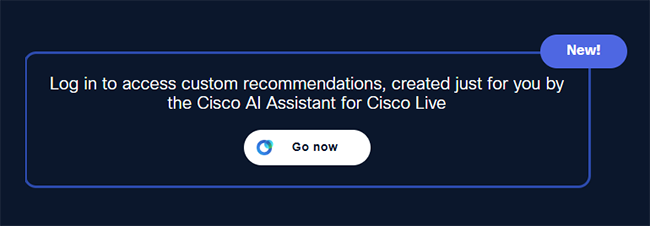
You can more easily find sessions, product demos, and World of Solutions exhibitors that are right for you with Cisco AI Assistant. By using your registration preferences and previously attended sessions, you’ll get recommendations in a calendar view to build your ideal agenda at Cisco Live. Select the sessions, demos, and activities that work best for you.
You can email the Cisco Live Support Team with your questions.
In the recommended sessions tab, you can use the (+) or (-) icon to add the session to your calendar. You can also use the “Add to Schedule” or “Remove from Schedule” buttons in the AI Assistant.
Go to the Recommended Activities tab in the Cisco AI Assistant to save or favorite activities. Once saved or favorited, find them in the Cisco Events App under “My Profile” in Favorites to review them in San Diego.
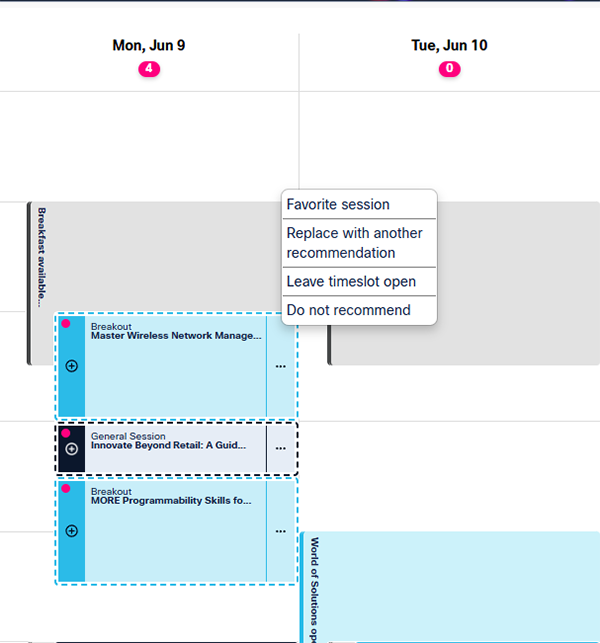
Go to the Recommended Sessions tab and select the ellipsis icon on the right of each session card. You will see four options: Favorite Session, Replace with Another Recommendation, Leave timeslot open, or Do not recommend. You can also use the (+) or (-) icons to add or remove recommended sessions.
This button will clear any session cards previously recommended or prompt responses in the Cisco AI Assistant to start a new conversation.
The colors identify the different session types and activities during Cisco Live.
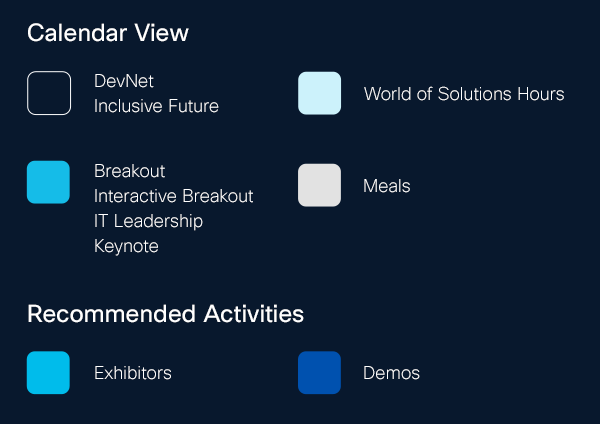
Recommended activities include product demos and World of Solutions exhibitors that match your history and preferences.
Cisco AI Assistant includes feedback icons to help us improve the recommendations for our Cisco Live attendees.
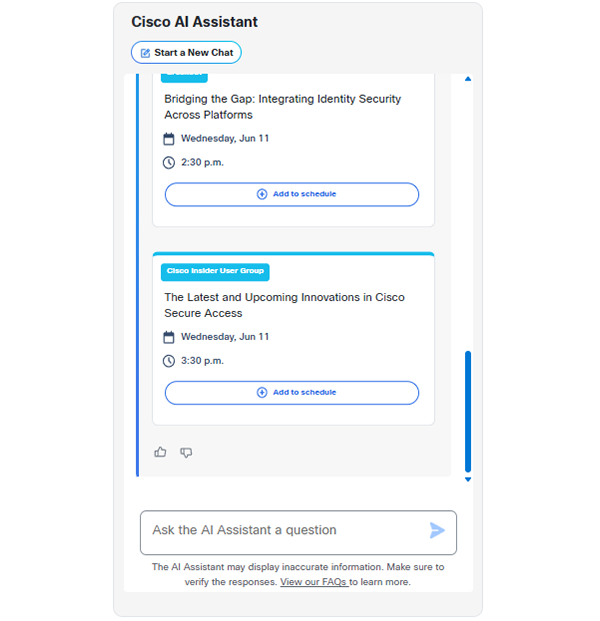
Yes, type the speaker’s name into the Cisco AI Assistant to find the list of sessions they are presenting.
Yes, absolutely! CLCs are fantastic way for Cisco customers, partners, and their employees to pay. You can redeem your CLCs to purchase your Cisco Live registration package as well as pay for Technical Seminars and the 4-hour Instructor-led Labs. If you have any questions about your CLCs, please contact the Learning & Certification Team.
Yes, you can! However, you must register for Cisco Live before the expiration date of your CLCs. The event itself can then take place after your credits have expired. Plan ahead and secure your spot!
Great choice! Your request will now go to your dedicated Team Captain for their review and approval. Once approved, you’ll receive an email notification. Remember, Team Captain approval is required prior to the event. If your Team Captain doesn’t approve your request within 60 days, your CLCs Sales Order will be automatically declined. If you have questions about your Team Captain, contact the Learning & Certification Team.
No, unfortunately, CLCs cannot be used in part payment or in conjunction with any other offer. You can purchase more Learning Credits by contacting the Learning & Certification Team.
Keeping track of your CLCs balance is easy! You can access your CLCs via LCMT (the Learning Credits Management Tool) or contact the Learning & Certification Team.
Please note that purchases made with CLCs are non-refundable. However, you do have the option to request a registration substitution to send a colleague in your place. Request a substitution by sending an email to the Cisco Live Events Team with the names and email addresses of both the original and substitute registrants.
A customer cannot upgrade their pass using CLCs. For all enquiries regarding registration, please contact the Cisco Live Registration Team by phone at +61 2 8908 5644 or email.
For more information, visit the Cisco Learning Credits FAQ page or send an email to the Learning & Certification Team.
For questions about account credentials or account creation contact Cisco support.
For questions about CiscoLive.com/apjc content or event registration contact the Cisco Live Events Team.
Cisco Live 2026 Melbourne can be accessed with the same username and password you use on Cisco.com. If you do not have a Cisco.com account you can create one when you register for CiscoLive.com/apjc. If you previously had a CiscoLive.com login but used a different email to register for Cisco account, contact the Cisco Live Support Team to have your accounts connected (after you have completed registration for the event). Your previous Cisco Live credentials will no longer work on CiscoLive.com/apjc. You must log in with your Cisco account username and password.
You can contact Cisco support.
You may use any of these special characters in front of the @ sign in your email address:
You may use any of these special characters after the @ sign in your email address:
Your Cisco account username and password will also work to access on-demand content.
You can update your information by logging in to your Cisco Live Registration
Some personal information can only be edited by updating your Cisco account profile. You will need to log back into Cisco Live for your Cisco account edits to appear. Choose the one of the following links to edit your information:
You will need to log back into Cisco Live for your Cisco account edits to appear.
You can access this by logging in to CiscoLive.com, clicking the drop down with your name in the top navigation and selecting the Account Settings page. On the Account Settings page there is a link to edit your Cisco account information to set up a recovery phone number within the security settings.
To update your preferred first name, log in to CiscoLive.com, clicking the drop down with your name in the top navigation and selecting the Account Settings page. On the Account Settings page, click the link to edit your Cisco account information. You will be sent to the Cisco Account Profile Management page. From this page, click the "Personal" link and add your preferred first name into your personal details. When finished, click the "Update" button.
To add a recovery number to your account, log in to CiscoLive.com, clicking the drop down with your name in the top navigation and selecting the Account Settings page. On the Account Settings page, click the link to edit your Cisco account information. You will be sent to the Cisco Account Profile Management page. From this page, click the "Security" link. To turn on a Recovery Number, toggle the switch to on. You will be asked to verify your password. Once verified, enter in the phone number you’d like to use and click "Submit". You will be sent a 6-digit code to the number you entered. This code is only active for 5 minutes. Enter your code onto the screen and click "Submit". You will now receive an on-screen confirmation that you have successfully added a recover number to your profile.
To add two-step authentication, log in to CiscoLive.com, clicking the drop down with your name in the top navigation and selecting the Account Settings page. On the Account Settings page, click the link to edit your Cisco account information. You will be sent to the Cisco Account Profile Management page. From this page, click the "Security" link. To turn on Two-Step Authentication, toggle the switch to on. You will be asked to verify your password. Once verified, select the authentication app(s) to install on your mobile device. If you already have one of these apps installed on your device, click the next button.
In your authentication app, scan the QR code from the screen or manually enter the key into your app. The app will generate a 6-digit code that you must enter on the screen. When finished, click the "Submit" button.
In your Cisco Account Profile Management, you can add a recovery number under the Security settings tab. Choose the one of the following links to edit your information: